Turn a prompt, PRD or user story into an interactive web app prototype with Claude Code, Codex or Cursor. Build with your agent, then test, edit and review the result together on an Enhance canvas.
Built and backed by




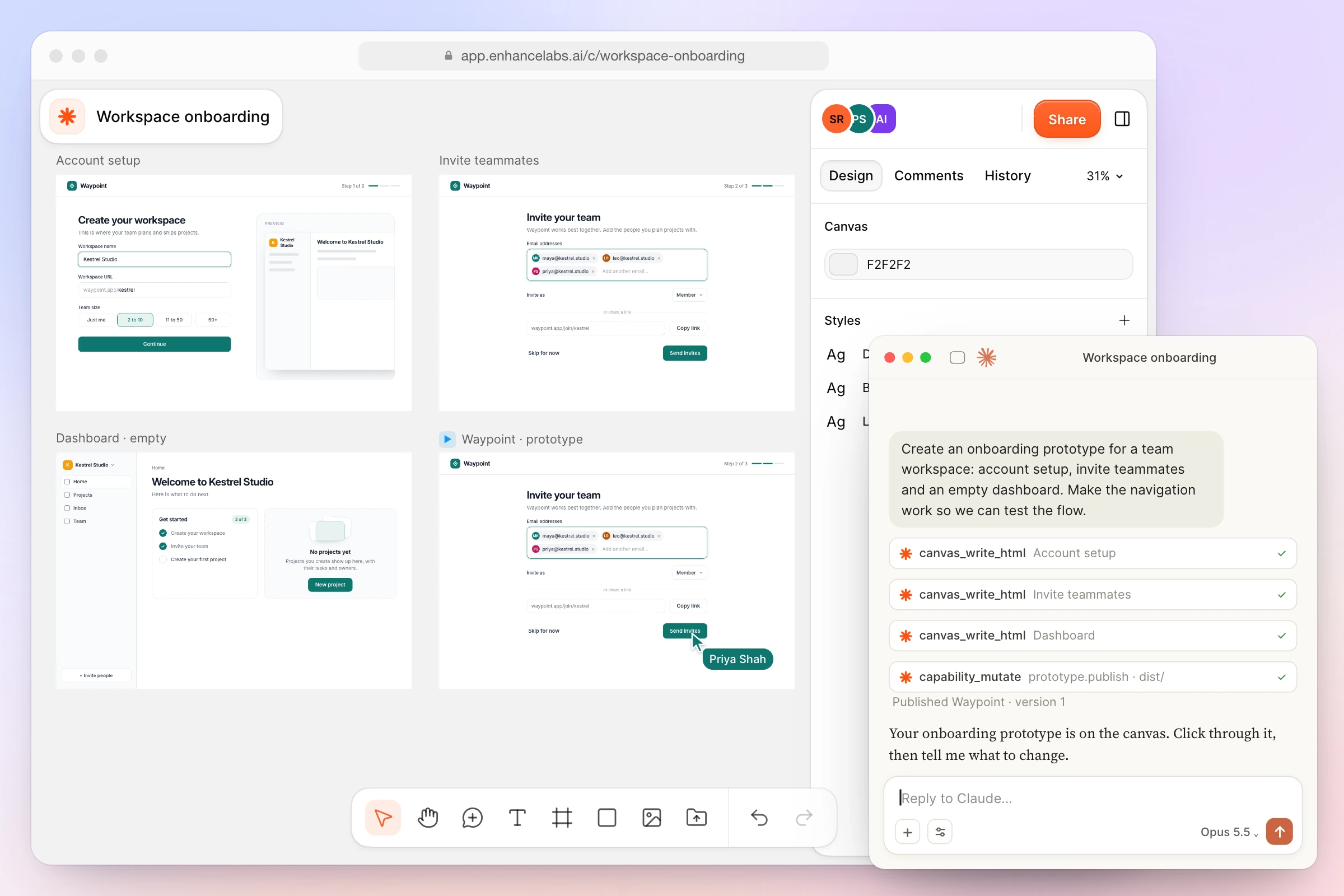
Start with one flow, such as onboarding, a dashboard or checkout. Describe the screens you need and what people should be able to do. Connect your AI agent to Enhance, then ask it to create the prototype and add it to your canvas.
“Create an onboarding prototype for a team workspace. Include account setup, teammate invitations and an empty dashboard. Use sample data, show what happens when a step succeeds or goes wrong, and let me move between screens. Add the prototype to my Enhance canvas.”
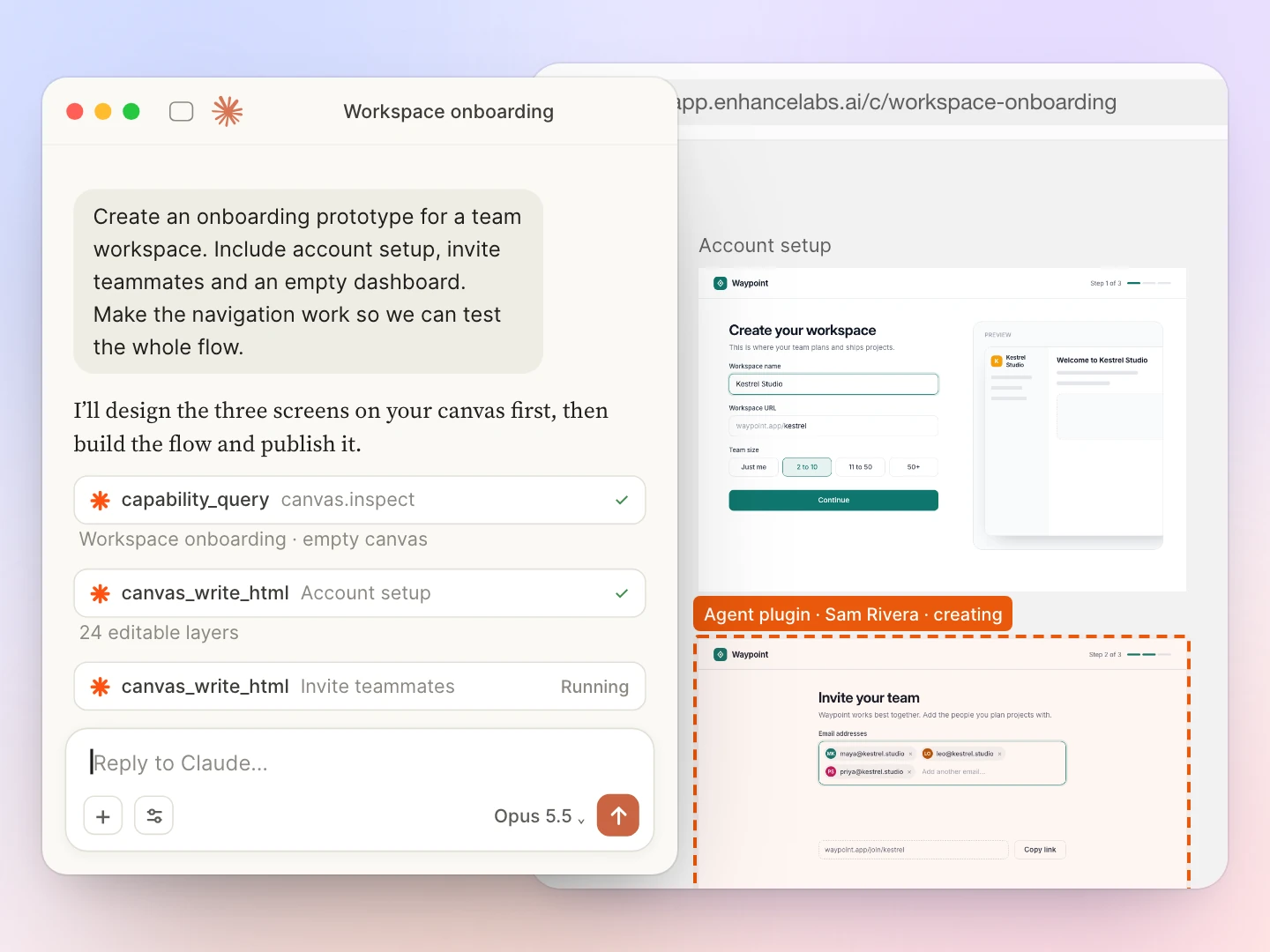
Use the same buttons, forms, fonts and layouts as your product. Point your AI agent at your existing project and ask it to reuse them. Review the prototype alongside your designs on Enhance’s canvas.
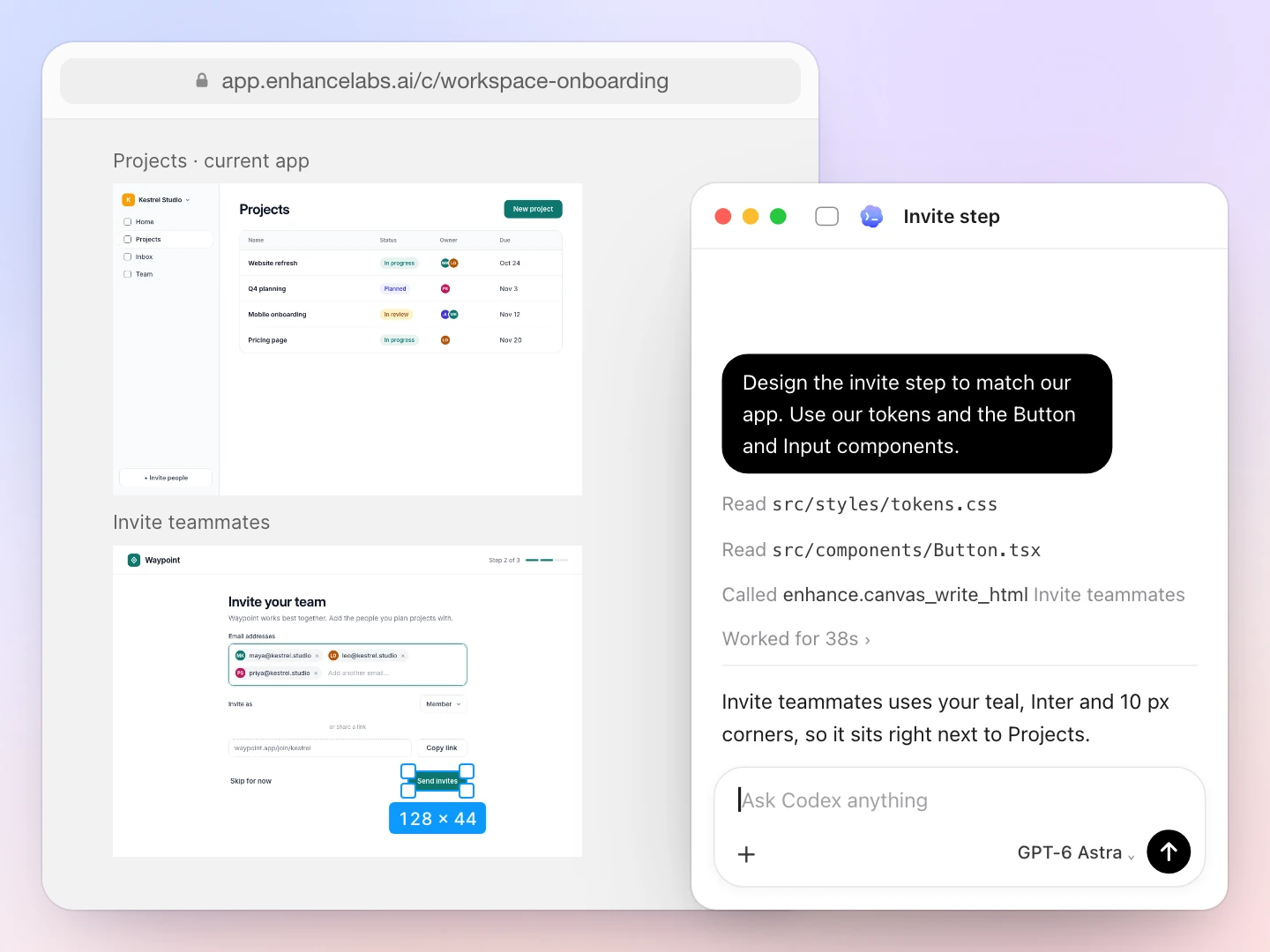
Try the flow yourself: move between screens, fill in a form and open a menu. Ask your agent to show what happens while something loads or goes wrong. Use sample data, or ask it to connect to your product’s real data, so your team can test the idea before building the full feature.
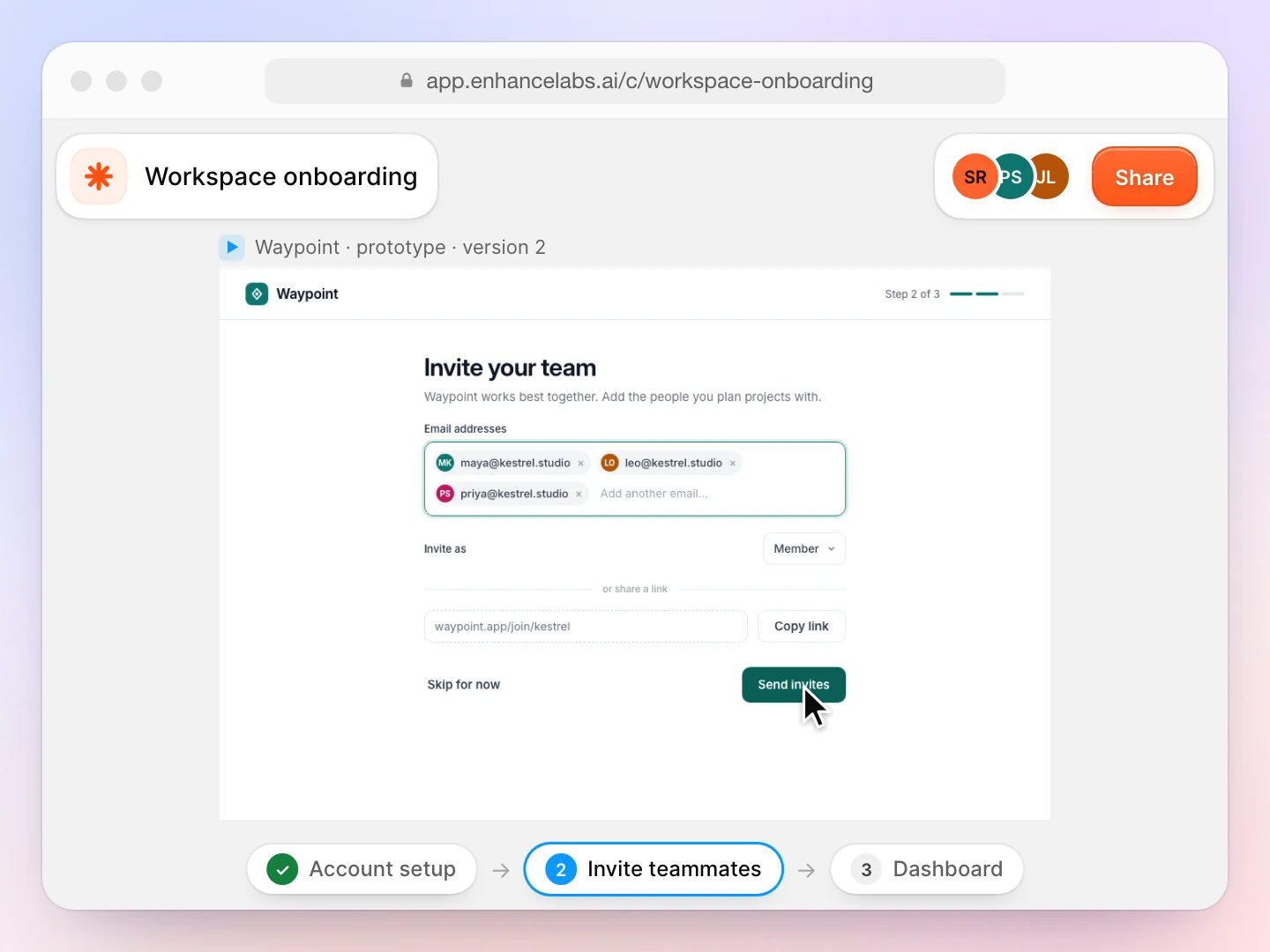
Share the Enhance canvas with your team. Keep the running AI prototype, editable screen designs and comments together so everyone can point to the same screen, discuss a change and review the next version.
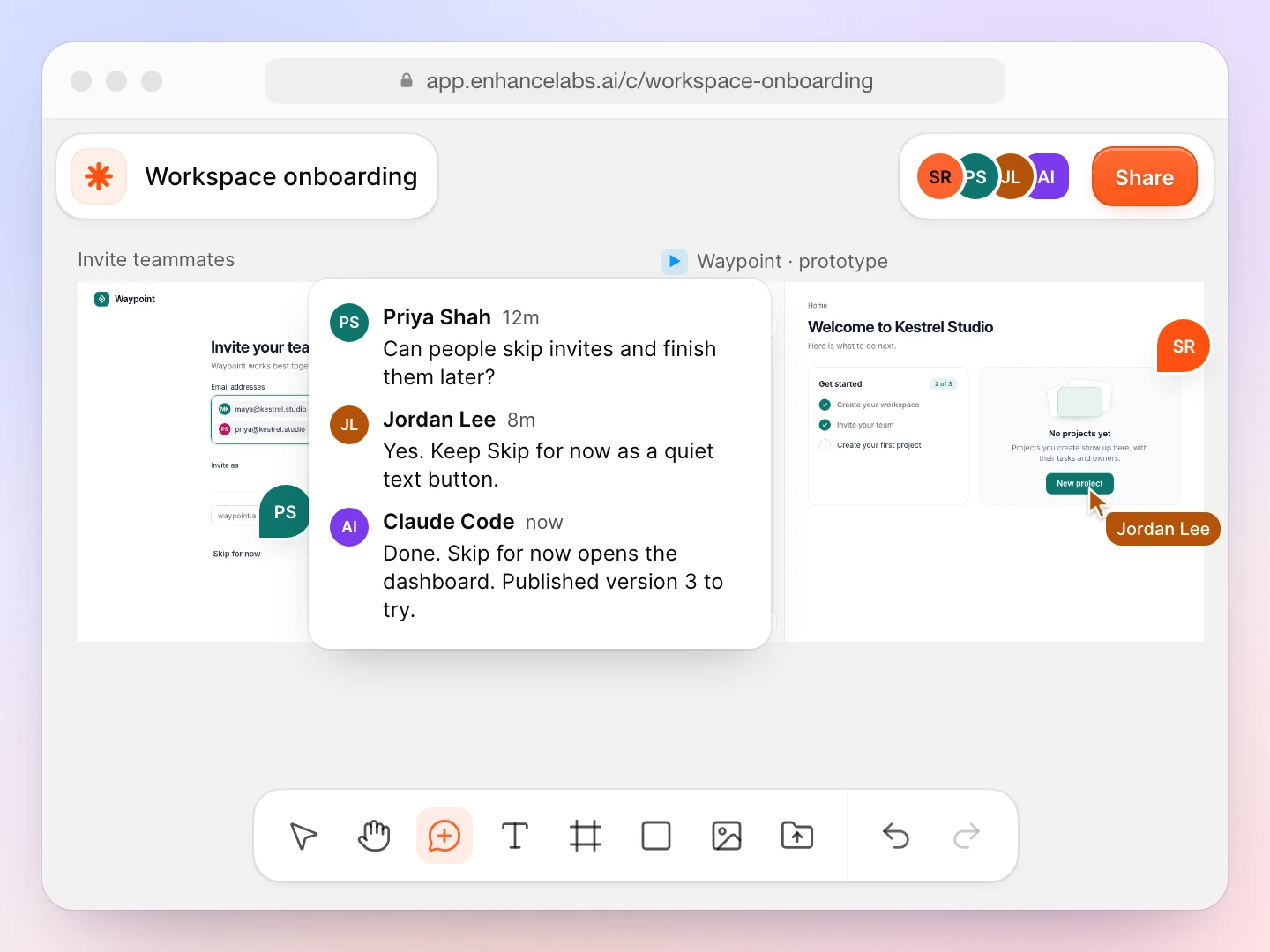
Enhance’s canvas uses standard HTML and CSS, so you can take your designs and prototype code into your own product. Choose the parts you want to keep and ask your agent to bring them into your project. Review the updated prototype together on your canvas.
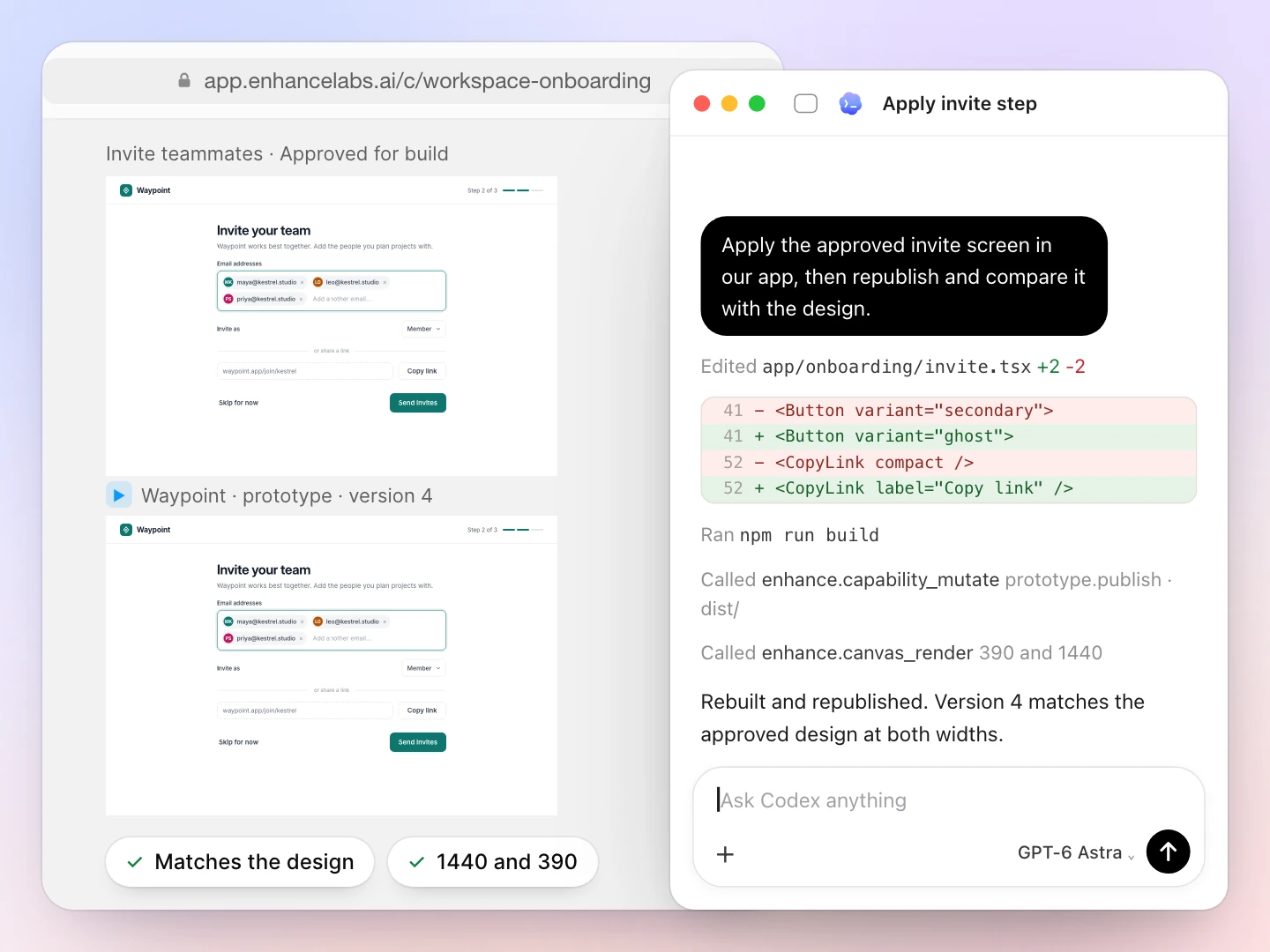
An AI prototype generator turns your idea or written brief into a prototype you can click through and test. With Enhance, your AI agent creates the prototype and adds it to a shared canvas. You can try it out, edit the designs and review changes with your team.
Create an Enhance canvas and connect Claude Code, Codex or Cursor. Describe what you want to create and what people should be able to do. Ask your agent to build your prototype and add it to your canvas. Try it out, then ask for any changes.
Yes. Give your agent your PRD or user story and tell it which flow to create, such as onboarding, checkout or a dashboard. Describe the screens and actions you want to test, then review the prototype and ask for changes.
Yes. Ask your agent to create the buttons, forms, menus and navigation you want to test. You can try them in the prototype and use sample data or ask your agent to connect it to your product’s real data.
Yes. Point your agent at your existing product and ask it to use the same buttons, fonts, colors and layouts. Review the prototype on your canvas and adjust it until it feels like your product.
No. You can start from an idea and ask your agent to create a prototype from scratch. If you already have a product, point your agent at its codebase to build on what you have.
Yes. Enhance’s canvas uses standard HTML and CSS, so you can reuse what you create in your own product. There’s no proprietary format to lock you in. Ask your agent to bring the designs and code into your project.
Yes. Copy and paste frames from Figma into Enhance, or use the Enhance Chrome extension to capture screens and record a walkthrough of an existing website. Captured screens are screenshots you can use as a reference. Give your agent that context when you ask it to create or change a prototype.
Enhance provides setup for Claude Code, Codex and Cursor. Connect your preferred agent, describe what you want to create, and ask it to add the prototype to your Enhance canvas.
You can create an Enhance account for free. Your connected AI agent may have its own plan or usage costs. Start with one small prototype and follow the agent setup guide to connect your preferred tool.